
Ask Chefy from Claude or ChatGPT
Add Chefy to Claude or ChatGPT, sign in with your Chefy login, and ask about your recipes, costs and stock from the AI app you already use, on the web or on your phone.
If you already use Claude or ChatGPT, you can add Chefy to it and ask about your venue there: what a recipe costs now, which supplier prices went up, what is on order this week. The app signs in to Chefy as you. It sees the venues you see and can do only what your role allows.
Before you start, check that you have:
- A Chefy login in a Chefy Pro organisation that has the assistant switched on.
- A role in at least one venue. Chefy-Go Only is not enough.
- For ChatGPT, a paid ChatGPT plan and a web browser.
Every app connects to the same address:
https://pro.chefyapp.com/api/mcpConnect Chefy in Claude
Custom connectors work on every Claude plan. On the Free plan you can have one.
- On claude.ai, open Customize, then Connectors.
- Click + Add, then Add custom connector.
- Type
Chefyas the name, paste the address above as the URL, and click Continue. - Claude finds Chefy's sign-in by itself. Under Authentication, choose Sign in now. Under OAuth client, keep the recommended option. Click Add.
- Chefy's sign-in opens. Follow Sign in and approve the app below.
On a Team or Enterprise plan, an Owner adds Chefy for everyone first, from Organization settings, then Connectors, then Add, Custom and Web, with the same name and address. Each person then opens Customize, then Connectors, finds Chefy and clicks Connect to sign in with their own Chefy login.
To use Chefy in a chat, click + at the bottom left of the message box, choose Connectors and turn Chefy on. Then ask your question.
Use it on your phone
Add Chefy on the web first. Then sign in to the Claude app on iPhone or Android with the same Claude account. Chefy is in your connectors there, and you turn it on in a chat the same way. You do not sign in to Chefy again.
Connect Chefy in ChatGPT
ChatGPT lets you add Chefy on the web only, and Chefy does not show in the ChatGPT phone apps yet. ChatGPT decides which plans can add a custom server, and on some plans it lets a custom server read but not make changes. ChatGPT's help page Developer mode and MCP apps in ChatGPT lists what each plan allows.
- On chatgpt.com, open Plugins.
- Click the + button, then Add custom MCP server. If ChatGPT does not offer it, turn on Developer mode in ChatGPT's settings and try again. In a Business or Enterprise workspace, an admin may have to allow developer mode first.
- Type
Chefyas the name. Under Connection, paste the address above. - For authentication, choose OAuth.
- Read ChatGPT's warning about custom servers, tick I understand and want to continue, and click Create as a plugin.
- Chefy's sign-in opens. Follow Sign in and approve the app below.
To use Chefy, start a new chat, type @ in the message box and choose Chefy. Then ask your question.
Sign in and approve the app
Claude and ChatGPT open the same Chefy screens.
- Sign in to Chefy as you usually do, with your second step if your organisation asks for one. If you are already signed in, Chefy skips this step.
- Chefy shows which app is asking to connect. If you belong to more than one organisation, choose the one to connect.
- Read what the app may do. The list is the set of jobs your role allows in that organisation.
- To connect, click Allow. To stop without connecting, click Cancel.
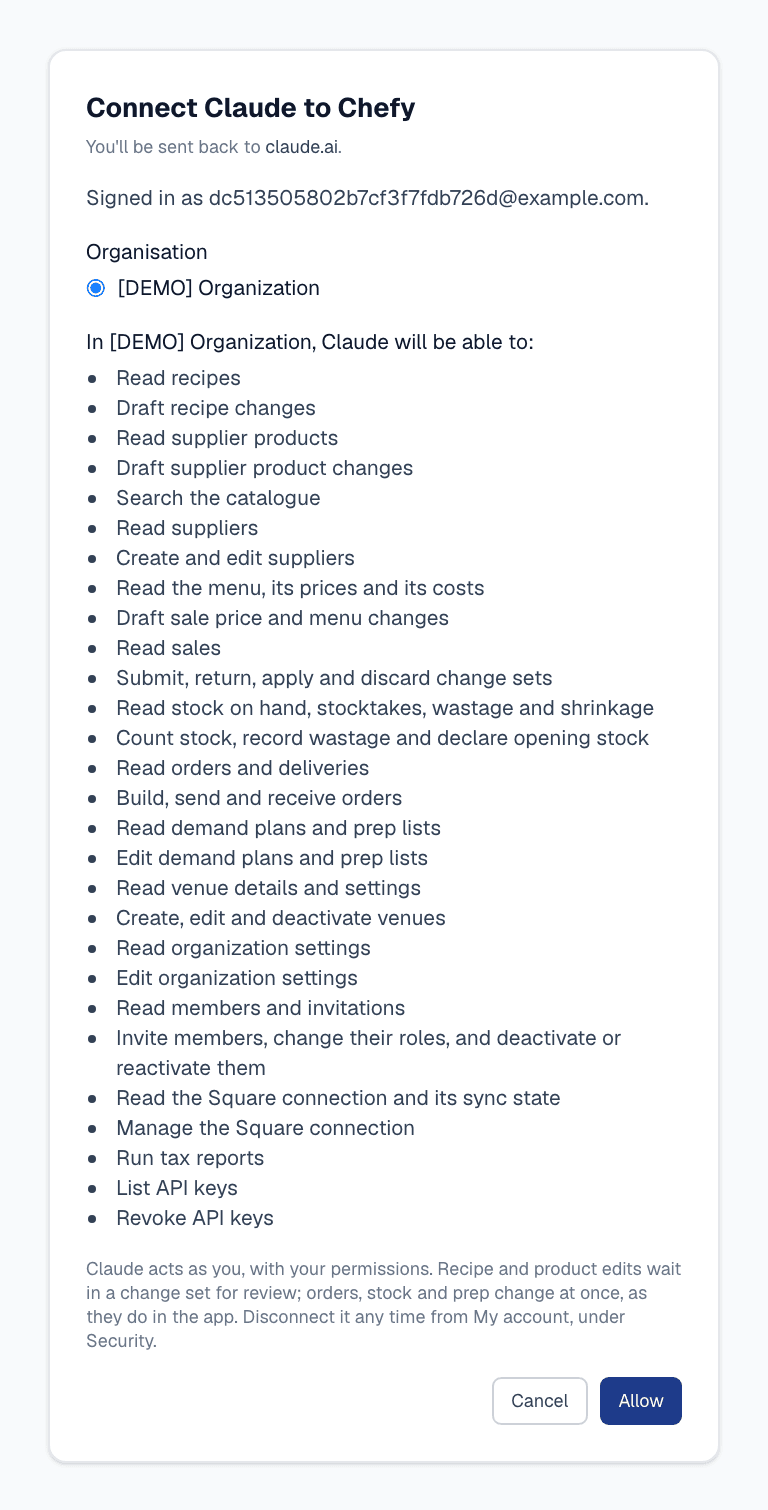
Chefy sends you back to Claude or ChatGPT, connected. The connection covers the one organisation you chose. To use it with another, disconnect it and connect again.
What a connected app can do
A connected app acts as you, with your role in each venue.
- It sees what you see. It reads the venues in that organisation where you have a role. If your role changes, the app follows on its next request.
- Edits wait for review. Changes to recipes, supplier products and sale prices land as drafts in a change set, the same as your own edits in Planning. They go live only once they are approved. See Make a change safely.
- Some jobs act at once, as they do in Chefy. These are jobs with no change set, such as sending an order, recording wastage or counting a stocktake. Chefy tells the app to do these only when you ask for them outright.
- Invoices go through Product upload. Send the app a supplier invoice as a PDF or a photo. It passes the file to Chefy, which reads it the same way as an upload in Chefy, and the app gives you an Open Product upload link. Open it to finish matching the supplier and adding the products. See Upload an invoice.
- A few jobs stay in Chefy. A connected app cannot switch a module on or off, remove someone from the organisation, or transfer ownership.
Chefy records every request a connected app makes, with your name and the app's name.
See and disconnect your connected apps
- In Chefy, click your name in the navigation to open My Account, then open the Security tab.
- Under Connected apps, the list shows each app you connected, its organisation, when you connected it and when it was last used.
- To disconnect an app, click Disconnect next to it, then click Disconnect again to confirm. The app loses access at once.

You can also remove Chefy from the app itself: in Claude from Customize, then Connectors, and in ChatGPT from Plugins. That removes it from the app, so disconnect it in Chefy as well.
If Chefy stops answering
When Chefy refuses a request, Claude or ChatGPT asks you to sign in again, or says it cannot reach Chefy. Check these causes in order.
- Your organisation's assistant is off. A connected app works only while the Chefy assistant is on for your organisation. Ask Chefy support to switch it on.
- Your organisation cannot connect apps yet. Chefy is opening connected apps to organisations in stages. Ask Chefy support whether yours is included.
- You were signed out of Chefy everywhere. That ends your connected apps too. Connect again.
- The app was disconnected. Someone disconnected it in Chefy, under Connected apps in My Account. Connect again.
- Your role changed. If you no longer have a role in any venue, or you left the organisation, the app cannot act for you. Ask a Venue Admin about your role.
To connect again in Claude, open Customize, then Connectors, find Chefy and click Connect. In ChatGPT, remove Chefy from Plugins and add it again.
Next steps
Connect Square and bring in your sales
Link your Square point of sale, match its items to your recipes, and start seeing real sales against your costs.
Use insights and reports
Where to look for what is happening in your venue, what Chefy sends you each day and week, and why live data beats a static export.